Recently in tfs Category

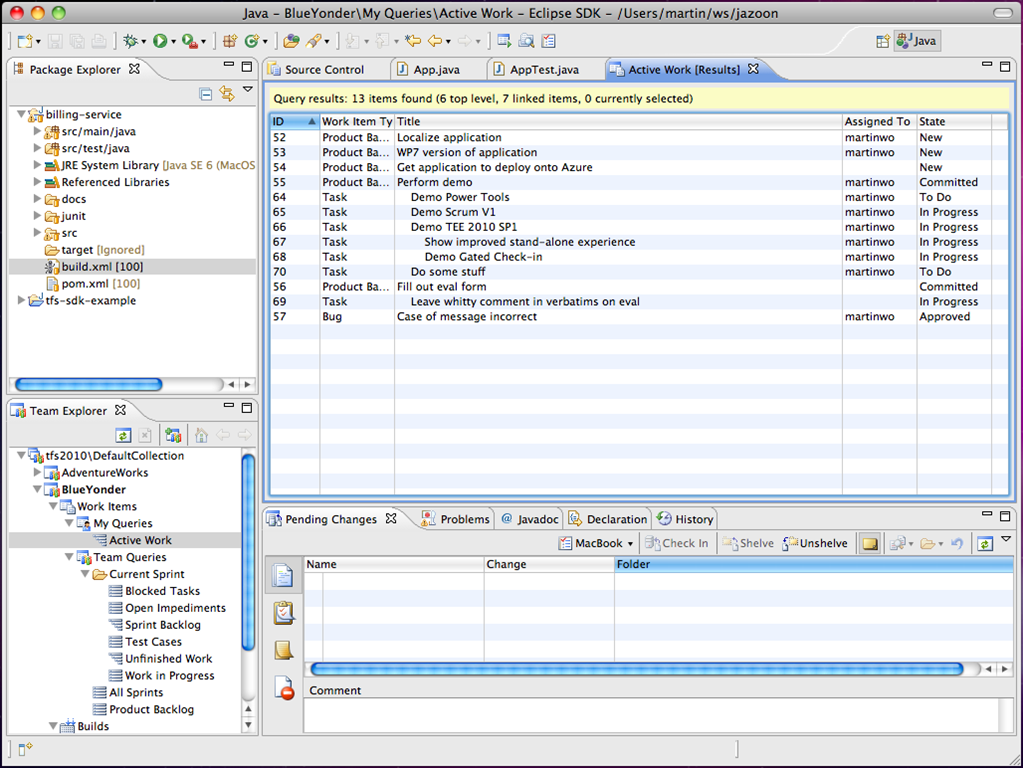
Brian Harry demonstrating TFS integration in Eclipse using Teamprise During Brian Harry's "Team Foundation Server 2010 Cool New Features" presentation at PDC, he demonstrated Teamprise working with TFS 2010 (codenamed "Rosario").  Not often you get one of the most senior technical people in Microsoft using Eclipse on stage at the premiere Microsoft conference!  Not only did Brian show some of the work we have been doing in talking with TFS 2010 but he also demonstrated the latest version of the Teamprise Build Extensions that make it very easy to run Ant based builds from Team Foundation Build, but also now publish the results of the JUnit tests into the TFS Data-warehouse for inclusion in reports etc.  Take a look at his session if you would like to see more - available from Channel 9.

As we progress along the road to Rosario and get closer to the TFS 2010 betas and the eventual ship date we will working hard to use of more and more of the Rosario functionality in our Teamprise clients.  As well as thanking Brian for taking the time during his packed session to talk about our integration, I'd also like to take this opportunity to thank the various TFS teams at Microsoft who have been incredibly helpful and supportive in all the discussions we have had with them about TFS 2010 over the past year (and more).  Now that the latest CTP is out, it is great to see what were specs and mock-ups until recently realised into bits that we can play with.  TFS 2010 is shaping up to be a great "V3" release from Microsoft and I am very excited about what the coming months will bring. 

Stay tuned - it's nice to be able to talk about some of this stuff now!

Teamprise Remote Accelerator At PDC last night Ed Thomson announced our latest product, the Teamprise Remote Accelerator.  This is a single user Team Foundation Server proxy designed for use by lone remote developers working off-site.  The product was initially developed for internal use as we have quite a few developers that work off site most of the time, like myself.  However when talking with a number of our customers we realised that other people would also get great benefit so we decided to release it as a product.

How Does it Work?

The Teamprise Remote Accelerator looks to Visual Studio or Teamprise clients just like any other Team Foundation Proxy Server.  The notion of a download proxy is part of the Team Foundation Server version control protocol.

TFS Version Control Proxy Protocol Explained

Basically, when you want to know the latest version of something the TFS client talks to Team Foundation Server and asks what the latest version of something is and requests a download token.  If a TFS proxy server is configured then the file with that download token is downloaded from the local proxy server.  If the file has already been cached by the proxy server then it can be downloaded immediately over the local network rather than having to wait for the file to be downloaded over the wide area network.

How is this different to the TFS Proxy Server from Microsoft?

Microsoft allow you to purchase TFS Proxy Servers for remote your remote offices.  This software lives on a Windows Server machine in the same domain as the Team Foundation Server and is running IIS.  It is a great solution when you have more than a couple of people at the remote site.  The Microsoft TFS proxy server will get the requested file the first time that someone requests it from the proxy server and when the second person requests the same version of that file they will get it instantly from the local network.  The problem is that the initial user does not see any real performance gain - therefore you need more than one person to make the product worthwhile - unless you seed the cache (see my blog post to explain how to do that with the Microsoft TFS Proxy Server).

Remote Accelerator ConfigurationThe Teamprise Remote Accelerator runs as a process in the notification area of your local machine, so does not need a dedicated server.  It can also be configured to "seed" the cache - i.e. you tell the Remote Accelerator what areas of the version control repository that you are interested in and it will poll the server for changes periodically and download the latest versions of any changed files for you.  That way, the file is more likely to exists locally the first time you ask for it.

Additionally, the Teamprise Remote Accelerator connects to TFS using your TFS credentials - regardless of if your machine is on a domain or not.  Please note that the remote accelerator only connects to TFS with a single set of credentials and these credentials much match those that you are using to connect to TFS.  The Teamprise Remote Accelerator is therefore limited to a single user connection and is not suitable for workgroups.

That said - if you have multiple machines on your network, either physically or you are running Virtual Machines, then you can configure them to point to your local remote accelerator if you wish.

What sort of productivity improvements are we talking about here?

Like everything, it depends on your use.  If you would like to see detailed benchmarks, then take a look at the Remote Accelerator pages on the Teamprise website.  Inside Teamprise we are pretty heavy users of branching and we also run quite a few machines to test access to TFS from lots of different operating systems.  Therefore we are always creating new TFS workspaces and downloading source so we see huge productivity improvements (which was the main reason why we wrote this product in the first place). 

As part of our beta-testing we made early versions of the Remote Accelerator available to a few Team System MVP's and select customers, and they too have been seeing pretty impressive performance.  Fellow Team System MVP (and all-round community legend), Willy-Peter Schaub has been blogging about his experiences here.  Since this version we have made several major performance improvements to the code as part of our release process.

Basically, if you think the Remote Accelerator is of use, then I would encourage you to sign up for a free trial and take it for a spin for 30-days on us.

Sounds nifty - how much is it?

$99 USD per person.

Ok, how do I sign up?

First, I would encourage you to download the Remote Accelerator and then sign up for a free 30-day trial license.  If you have any feedback or comments on the product then let us know.  Once you have decided if the remote accelerator works for your scenario then you can purchase from our store.

What next?

This first release concentrated on performance and functionality.  While we are continually looking to improve the performance of the Remote Accelerator and improve the remote TFS experience, we are also looking to make the product both easier to use and easier to tell how well it is working for you.  If you have anything you would like to see in the next version of the Remote Accelerator then please let us know.

Teamprise at PDC 2008

| No Comments

PDC2008 In case you hadn't heard, this week is Microsoft PDC 2008 in LA.  Sadly I'm not able to make it over this time due to some health issues, however the Teamprise team will be out in full force.  We have quite a few new things to show people this week including:

  • Integration with TFS 2010
  • Publishing JUnit test results into TFS (2005, 2008 and 2010)
  • A brand new product!!

So if you happen to be at PDC then please stop by the Teamprise booth at the Partner Expo. Also, Brian the Build Bunny will be making an appearance at the ShowOff event tonight so if you are a fan of Brian's work, then stop by and give him some votes.

If, like me, you are stuck back at the office wishing you'd managed to get out to PDC then don't forget to keep an eye on my blog for Teamprise news through the week and on the Microsoft PDC site to follow the conference virtually.

Radio TFS on Check-in Policies

| No Comments

We just released a new Radio TFS episode on check-in policies.  You can listen to the show here, but don't forget that you can subscribe to the show using the RSS Feed in iTunes or Zune (http://feeds.feedburner.com/radiotfs).  As we mention in the show, we have a set of special episodes coming up that you really won't want to miss so now is the time to subscribe.

Visual Studio Team System 2010

| No Comments

If you haven’t heard the news already, Microsoft have officially announced the name of the next version of Team System, previously known by the codename of “Rosario”.  For Microsoft developers, this will be delivered on top of Visual Studio 2010.  While Team Foundation Server is already very mature, there will be a new version of TFS in the 2010 release with significant improvements and enhancements.


It is fantastic that the lid is starting to open on the 2010 release in the build up to PDC and that we can start talking publically about all the great stuff in the next version.  Like most developers I love talking about cool new stuff and it has been a nightmare watching what I say for the past couple of years.  Here at Teamprise we have been working closely with Microsoft for some time now on Rosario.  I’ve been trying to remember exactly when our first meeting was about it, however it is all a bit of a blur.  I remember one particular meeting in April 2007 were we had the majority of the Teamprise team on-site with Microsoft but that was to discuss issues and get more detail on some Rosario feature stuff so we were already aware well before then.  Suffice to say that we’ve been in close contact and we are working on it.  We’ve had releases of Teamprise with-in weeks of the major TFS launches to-date and I would expect that trend to continue.

In fact, I already have my first bug fix included in the 2010 release! I was recently notified that a bug I submitted for the .NET base class libraries has been fixed and will be included in .NET 4.0.  This actually had some important implications with cross-platform compatibility, so not only does it demonstrate how seriously Microsoft take community feedback, it also highlights their commitment to making Team System suitable for the management of your entire enterprises software development.

So, where can you learn about all the great new stuff in VSTS 2010?  First, keep your eye on Brian Harry’s blog and on Channel 9.  Also, over at RadioTFS we have been working on a series of podcasts highlighting Rosario and interviewing members of the team.  We will be releasing these over the next few weeks so if you haven’t subscribed to RadioTFS then do so now so that you don’t miss a thing (RSS Feed, Subscribe in Zune, Subscribe in iTunes). 

As CTP’s for the 2010 release start to come out, please do take a look and send feedback over to the Rosario MSDN Forums for Team System and TFS.  The Team System team at Microsoft are incredibly responsive to the community and take all our feedback very seriously, so now is the time for action from us so that they here our feedback loud and clear.

As with all these things it will take me a while to get used to calling “Rosario”, “2010” but I’ll get there in the end.  I am really looking forward to great new functionality and seeing what news PDC brings.

Filtering WIT Client Meta-data

| No Comments

In TFS 2008 SP1, a new feature was quietly introduced, WIT Client Metadata Filtering.  This feature could boost the performance of your Team Foundation Server experience, reduce the amount of traffic flowing over your network and reduce the data porosity of your TFS instance. Yet it is not enabled by default. In this post I'm going to explain the feature, what it does and how and when to enable it.

But first, what the heck is WIT meta-data and why do you care about filtering it?

WIT Meta-data Explained

Team Foundation Server has the concept of we all know and love of "Work Items". A work item is a bug, task, requirement, feature - whatever you have defined as the main elements of work that make up your software development process. TFS has a very flexible Work Item Tracking system (known by the TLA of WIT). The key to the flexibility of the WIT functionality is that everything that makes up the work item is customizable. How it looks, what data can be stored and what states the work item can be in are all configurable by editing the work item definition in TFS. A single Team Foundation Server instance is split into multiple Team Projects, each one able to have its own work item definitions independent of the other projects on that server.

When you work with work items in Visual Studio or Eclipse, one of the nice things about TFS is that if you change a field the client instantly knows what other fields need to change and what values are permitted. There is no delay while the client asks the server something - it just happens. This is because the rules that make up the work item definition are actually all downloaded to the client machine and kept in sync with the server so that the client always knows exactly which values are available for each field. These rules make up what is known as the WIT meta-data.

imageLet's make this a little less abstract and take a look at one of the default work items that comes in the MSF Agile process - the Task.

In a Task, we have basic stuff like the title. The client displaying the task needs to know that you want to see the title. You want to see it on the top left hand side, it contains text and that it is mandatory. That's at least 4 rules already - field name, data type, form position and validation rules. Next we have the "Discipline". It is a mandatory text field that has a set of allowable values that appear in a drop down box. The rules for this field cover not only the field type, validation position etc but also all of the allowed values for it (or "constants" in the meta-data world). Then we have a few more fields. The "Assigned To" field contains everyone that the work item can belong to. By default, this is the full name of everyone who has access to your Team Foundation Server instance (this is a dumb default by the way - but a topic for another day). Not only do the work item rules have to store every single person that the work item can be assigned to, it also has to remember who created the work item and (in the case of a MSF Agile "bug" for example) know that when it is marked as resolved that it should default to being re-assigned back to the person who raised it. And these are only a few of the fields and possible state transitions that are possible for a single work item type in a particular Team Project.

As you can tell, this meta-data quickly mounts up. Not only that, you can change a work item template at any time and the allowed values in the fields change quite often (for example as new people are added to the project or a build is run). This means that the client has to be kept up to date of the changes made to each work item type as they are made. An interesting problem.

How this is solved in TFS is that the work item client maintains the state of its locally downloaded meta-data and what versions it has of them. Whenever it talks to the server to perform a work item related query it tells the server what versions of each of the types of meta-data it is on and the server then sends back all the stuff it doesn't know about yet along with the data the client was actually asking for.

For example, when you make a query in TFS to see what work items are assigned to you at the moment it queries TFS and in the same request tells TFS what versions of all the meta-data tables it has. In the response from TFS you get the results of the query and also any rows to be modified in the meta-data.

So far so good. Sounds like a good way of achieving a very rich client side experience. One of the problems with it is that when Team Foundation Server 2005 shipped the client received ALL the metadata for ALL team projects on the server, regardless of how many of those projects the user had access to. This is obviously less than ideal - not only is some information about other projects in TFS leaking out but it imposes a limit to the number of Team Projects on a server.

This Team Project limit is well documented in a MSDN article from Bill Essary "Team Foundation Server Project Limits". The more team projects you have, the more meta-data that exists. This has to be downloaded to the client the first time it connects, and every time a service pack is applied. Not only that, the meta-data has to be built up by the server, sent over the wire and loaded into memory to be used by the client. If you have too many Team Projects on the server, you'll get too much meta-data. Too much memory will be needed in the client, or worse, too much memory gets consumed by the server processing all the client download requests causing excessive IIS worker process recycling and severely impacting TFS performance. To take the perverse case, if you apply a TFS service pack to a production instance with 200MB of WIT Metadata then usually the service pack will "stamp" the meta-data cache meaning all new clients will need to download a new version of the entire cache next time they connect. You apply the service pack on a Saturday and everything is looking good. Monday morning rolls around and at 9am everyone boots up their machines and logs into TFS and starts requesting the 200MB download all at the same time, saturating the IIS server running TFS and the network connection to it meaning they will all have to wait a long time to get up and running.

In Team Foundation Server 2008 SP1, a new feature was introduced that alleviates at least some of these issues - WIT Client Meta-data filtering. The feature is pretty simple, by setting a flag in your TFS web.config all clients will only get the WIT meta-data applicable to their user-id. This decreases the amount of meta-data that the client must download and parse.

For a system like CodePlex this feature is a great boon. CodePlex is the Open Source hosting solution from Microsoft and it uses TFS at the back-end. They have several TFS server instances each hosting many team projects. Typically a developer hosting a project on CodePlex might have access to one or two projects on a server, but in the past they had to download all the meta-data for all projects on that server when they wanted to connect with Visual Studio or Teamprise. CodePlex were one of the first organizations to enable WIT Meta-data filtering, even before SP1 was publically available. After the feature was enabled, the average meta-data download size went from about 40Mb to 3.5MB - that makes a big difference to the initial connection speed when you start downloading that amount of data over the internet.

In fact, this feature makes so much sense you might be wondering why it is not enabled by default. The reason is that some applications (especially server-side ones, such as Team System Web Access), actually made use of the fact that WIT Meta-data is the same for all users and so they only download a single copy of it. This worked great in the old days, but if WIT meta-data filtering were enabled then they would only see the WIT meta-data belonging to the first user to connect.

Thankfully, the WIT team took this into account. Not only is the feature disabled by default but they also make it so that you could control which client applications were excluded from the meta-data filtering by providing their user agent.

Enabling WIT Meta-data filtering.

Now that we have been through all the gory details, let's finally see how to switch on the feature.

In the appSettings section of the %ProgramFiles%\Microsoft Visual Studio 2008 Team Foundation Server\Web Services\WorkItemTracking\web.config file add the following keys

   1: <add key ="filterClientMetadata" value="true"/>

   2: <add key ="excludedUserAgents" value="WebAccess:w3wp:witfields:witimport:witexport:witadmin"/>


The filterClientMetadata switch determines whether to filter client metadata based on the calling user's access rights (true) or not (false). If not provided the setting will default to false.

The excludedUserAgents switch is a colon delimitated list of strings that may appear in the requested clients HttpRequest UserAgent header. You can take a look at your IIS logs or your TFS Activity logs to determine what user agents are used, but a handy feature of the TFS .NET API is that the executable name using the API is recorded in the user agent string, meaning that you can easily find your specific utility and exclude it if necessary. As far as I am aware, the only publically accessible application that makes use of shared meta-data is Team System Web Access, so we put "WebAccess" in our excluded user agents setting. We also put in the names of the utilities in Team System that need to see all the metadata to report back correct information to the TFS administrators.

Note that the text provided in the excluded user agents setting can appear anywhere in the string using a case insensitive search. Also note that all requests coming from the same machine as the TFS application tier are automatically excluded.

And that is all there is to it. The next time a new client connects they will only get meta-data relevant to them.

Effect on the Team Project Limit

This might be too nuanced to place into a general guidance document, but the limits on the numbers of Team Projects on a server start to get a bit of wiggle room once this feature is enabled. If most users in TFS only have access to a handful of projects, the soft limit can go moderately high, so long as multiple administrators do not make a fresh, first connect concurrently. Using the meta-data filtering, the total number of team projects probably becomes less of a factor in determining the total size of the meta-data. Instead, the biggest factor probably becomes the total number of users on a server.

That said, for "normal" companies, if you are bumping up on these limits already (with the product only having been around since 2005) then you are possibly not using Team Projects correctly. Team Projects should be fairly large, long running things - not created one per solution as some people seem to want to do. However, if you do have tens of Team Projects on a server, with the majority of users only having access to a subset of them then I definitely recommend you take a look at client meta-data filtering.

TFS Migration Toolkit In a recent episode of .NET Rocks, we got talking about migrating to TFS and taking your SCM history with you.  If you really wanted to go through the pain of doing this then the TFS Migration and Synchronization Toolkit project on CodePlex is a good starting point to write a bespoke migration script.  As well as providing a framework for migration code along with samples, the project also includes some low-level direct web-service hacks that let you do some things that the officially supported .NET API do not.  Normally this would scare me, but with this project you have the comfort of knowing that the code actually comes from people at Microsoft including some of the same people that work on Team Foundation Server itself.  They have just released a new version of the tool with better TFS 2008 compatibility. From the project site:

Key features of the Toolkit
  • Ability to migrate historical data for VC and WIT
  • Ability to migrate individual projects independent from one another
  • Bi-directional synchronization of data between TFS and another system allowing teams to transition over time
    • Enables integration of TFS with other VC and WIT systems (i.e. using TFS for VC but a proprietary system for bug tracking)
  • Includes several reference implementations to demonstrate Toolkit capabilities and provide an example to tool authors

The related TFS to TFS Migration Tool has also been updated.  If you are interested, please take a look at the project pages on CodePlex.

If this sort of thing interests you, then you might also want to keep an eye on the TFS Migration Blog for more details.

Archives

Creative Commons License
This blog is licensed under a Creative Commons License.