Recently in Vsts Category

On Thursday 20th May, I have the privilege of speaking at the Test Manager Forum in Dublin.  I’ll update this post after the event with links to the slides, other resources and any other links that might come up that I end up promising to share to the audience.

Also, I just wanted to say a big Thanks to Brian Keller who’s content I’m stealing for my session.  If you haven’t already – be sure to check out the free sample chapter on Manual Testing from the Professional Application Lifecycle Management with Visual Studio 2010 book that Brian and I helped co-author.  Brian’s manual testing chapter was essential reading for me when I was learning the tools.

Anyway, wish me luck!

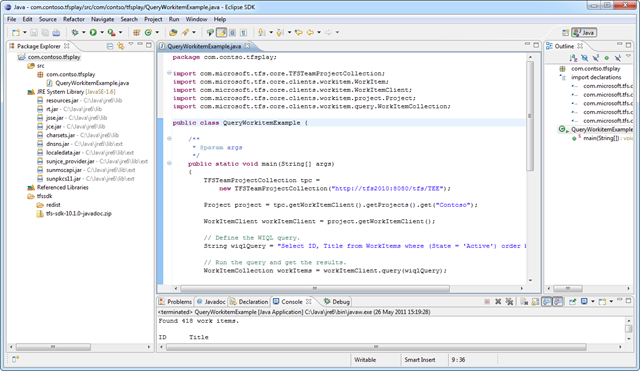
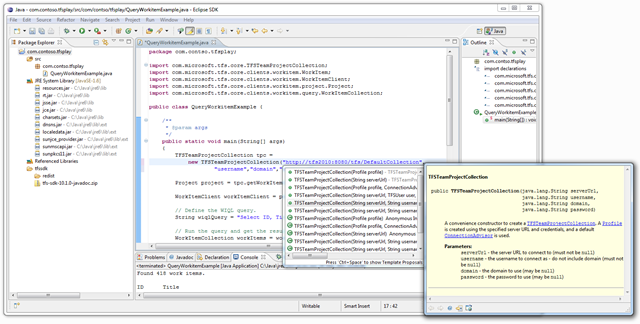
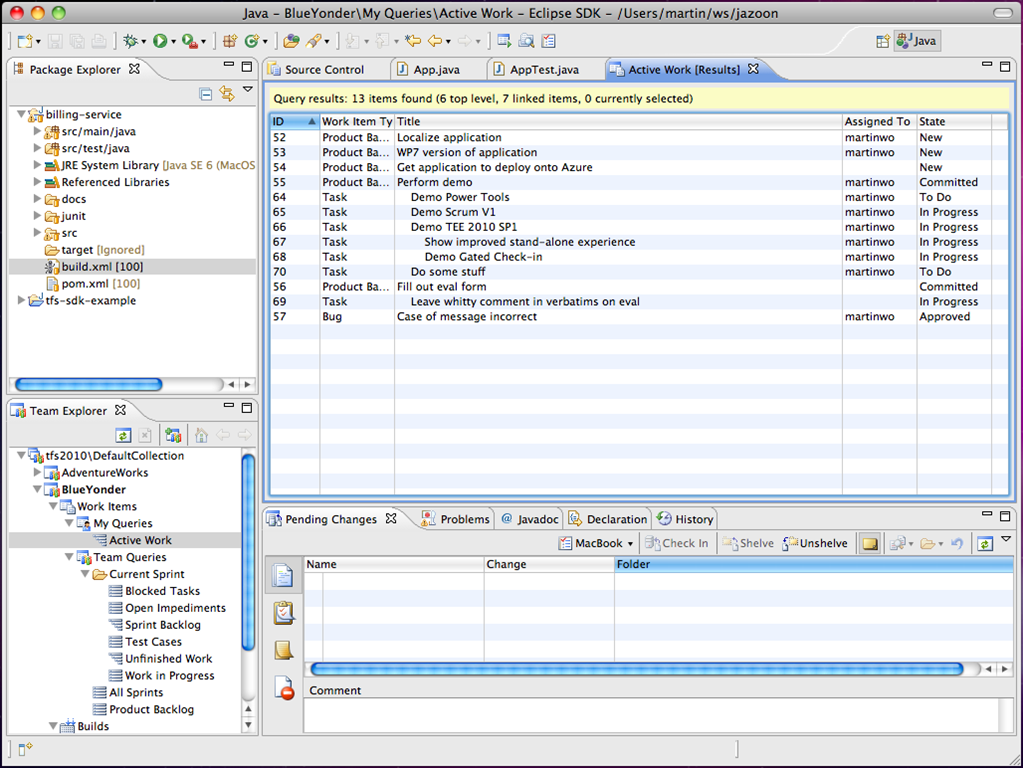
Team Explorer Everywhere In case you missed it, as part of Bob Muglia’s keynote announcing the launch of Visual Studio 2010 last week he also announced the launch of Microsoft® Visual Studio® Team Explorer Everywhere 2010.  This is the initial release of the bits that Microsoft acquired from Teamprise back in November and this release is the result of what my team has been working very hard on since that acquisition.

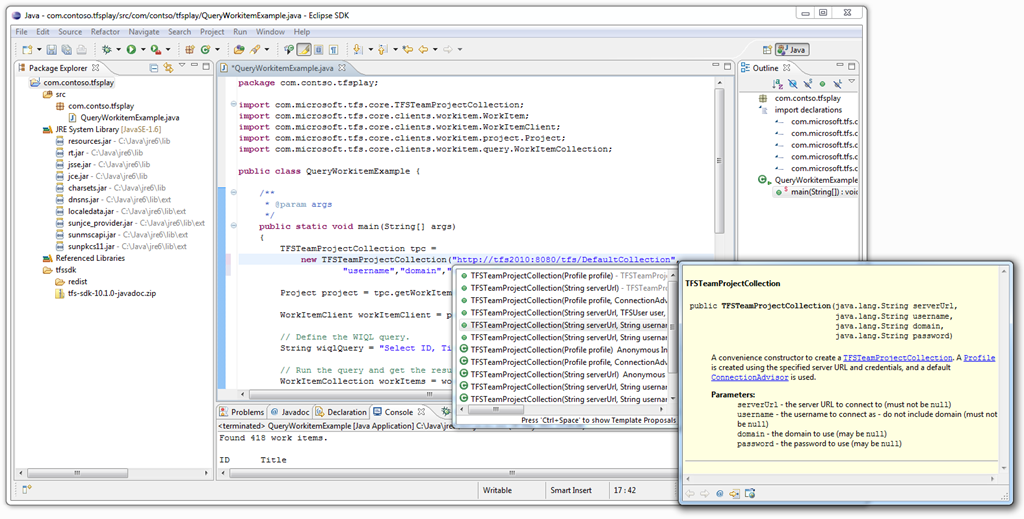
Team Explorer Everywhere contains the following components:

I’ll post more about what functionality is included in this release, but first I wanted to talk about what this means to existing Teamprise customers.

Teamprise customers should have already got a couple of emails from the company. If you haven’t then head on over to the following site for more information (http://www.microsoft.com/pathways/teamprise).  Basically when Microsoft shipped it’s first release, Teamprise ceased sales of the existing products and will begin the process of wrapping up the company.  Microsoft will be the contact point from now on for all purchases and support enquiries.

Teamprise 3.0 customers are entitled to a free upgrade to the new Team Explorer Everywhere 2010 version.  You can find out the full details of eligibility and how to claim this license at the following page on the pathways site (http://www.microsoft.com/pathways/teamprise/Teamprise%20v3.x.htm).

If you are a new customer, you’ll be please to know that Team Explorer Everywhere is now also included in the Ultimate level MSDN subscription and is also available as a standalone product for folks without the top tier MSDN Subscription (or indeed without any MSDN Subscription).

If you have any questions of feedback about all this then the pathways site has contact details.  You can also discuss things over on our MSDN Forum.

Working on Teamprise has un-doubtably been the highlight of my career prior to joining Microsoft, and I have to confess to at having a tinge of sadness that the brand we created in our little start-up is going away.  That said all the developers who worked on the product came over to Microsoft and were part of the team that got this new release under the Microsoft banner out the door.  We all worked long hours to ensure that the new version was able to take advantage of many of the TFS 2010 features and I’m very proud of what we managed to accomplish since November.  Also, we’re obviously not stopping there.  Since shipping the initial release we’ve continued development and are hoping to keep getting more functionality out the door.  In addition, now that we are part of the core Team Foundation Server team we get to influence the future direction of the product in ways that I cannot even predict at this time.  The TFS team were always very good at listening to our feedback from a cross-platform point of view – but now we’re all part of the same team we’re even harder to forget :-)

But more on all this soon.  I’ve been so busy helping get Team Explorer Everywhere 2010 shipped along-side the rest of the Visual Studio 2010 release that I’ve been neglecting my blogging and podcasting duties.  But it’s great to be back!

What’s in a Name?

When the Teamprise technology was acquired by Microsoft, one of the first non-TFS 2010 feature things that we knew we needed to do was change the name.  You’d think re-branding would be simple, just do a global search and replace for “Teamprise” and replace with the official Microsoft name – and then reformat everything because the Microsoft name is obviously going to be longer :-)  Obviously nothing is that simple.  It took a while before we decided on a name, at the moment we are Microsoft Team Explorer 2010 codename “Eaglestone” – which in the team we sometimes abbreviate to “TEE” (because it is shorter, but it is also handily a slight homage to the Teamprise logo which is the T power button).

However, in the past we used “Teamprise” to mean different things.  For example we have “Teamprise” views in Eclipse.  When you whent to import a project from Team Foundation Server you selected “Teamprise”.  Sometimes we used Teamprise as a product name, sometimes as a metaphor for accessing TFS. Sometimes we used it under the covers as well – for example as the name of an annotation in version control when storing check-in polices or as the layout type when doing work item forms. 

Montage of Teamprise screens showing branding choices

This was a deliberate decision at Teamprise.  When we started we were just a plucky start-up convinced that we were one of many working to put TFS into Eclipse.  We wanted to make our name synonymous with accessing TFS from Eclipse so that people would think of us instead of a competitor.  But we also wanted to allow competing products to exist in the same Eclipse installation so that users had choice as to which TFS connector they used and it wasn’t too confusing for them.  Largely this was a success.  We got a solution to market at the right time and managed to keep improving the technology and a competing product never really appeared.  To people who know Team Foundation Server, Teamprise == TFS in Eclipse and Teamprise == TFS cross-platform.

But, there was a whole world of people that we didn’t reach.  People would always need to know to ask “How do I connect to TFS from Eclipse, or How do I connect to TFS from the Mac” and be given the answer of Teamprise (either by a person or a search engine).

Now that we are part of the Team Foundation Server team, it doesn’t make sense to be as “visible” anymore as a brand in the UI.  When you are connecting to Team Foundation Server in Eclipse or want to see Team Foundation Server resources – you should look for Team Foundation Server.  When looking for how to connect to TFS from Eclipse, you should look for the product that contains a “Team Foundation Server plug-in for Eclipse”.  It is now Team Foundation Server we want you to connect with (both literally, and from a branding perspective).  All this means that it is more complicated than just doing a search/replace in the UI as now we need to figure out when we were using Teamprise to talk about TFS and when we were using it to talk about the software that you plug-in to Eclipse.

Montage of screens taken from the new Microsoft release

And then there was package renaming.  All of our code used to be in com.teamprise packages.  Some classes were called things like “TeampriseLogConfiguration” etc etc.  In each case decisions had to be made on individual merit rather than being able to come up with a simple automated cookie cutter approach.

The following is what we ended up with:

  • In the UI, when talking about connecting to Team Foundation Server use that name and the TFS icon.
  • Packages moved from com.teamprise.* to com.microsoft.tfs.*.
  • Class names sometimes went from Teamprise* to TFS* or TEE* depending on use, or got a different name entirely.
  • Eclipse plug-ins moved from com.teamprise.* to com.microsoft.tfs.*.   We also took the chance to do some refactoring here to make the plug-in names more sensible now that the codebase is much more mature and the roles and responsibilities of each plug-in is better defined than it was back at V1.0 of Teamprise when some of them were originally created.
  • Extension points moved from com.teamprise.* to the appropriate plug-in com.microsoft.tfs.* based name.  This is important if you were previously using the Teamprise extension points to add integration into our plug-in from yours.  I’ve spoken to the customers and partners that I knew of that were doing this – however I expect more will want to once we make the initial Microsoft release and so we wanted to get the naming right now.
  • Check-in policies keep their Teamprise based annotation names in version control.  This fact is totally transparent to end users, but means that we retain backwards compatibility with older Teamprise client defined check-in policies.  It also means that partners like JetBrains who have their own check-in policy implementation in the IntelliJ IDE that uses the “Teamprise” scoped mechanism for check-in policy storage need not change their code.
  • The .tpattributes file lives on as the file that is used to store unix execute bit permissions etc, the .tpignore file lives on as the file you can use to specify resources that Eclipse should ignore.  Again this was for backwards compatibility.  We could have gone down a route where we searched for “.tfsignore” first etc but we’re hoping to be able to reduce the need for these files at some point in the future by making use of the new properties capabilities in TFS 2010 so we decided to leave alone.
  • In the work item layout target names, “Teamprise” used to be the name of a layout target that was for the Teamprise client.  “Teamprise” is still accepted (for back-compat) but a layout with the target name “JavaSWT” now takes preference.  Therefore when we are looking for a layout target in Eclipse we look for one called:
    1. “JavaSWT”, followed by
    2. “Teamprise” followed by
    3. “WinForms”, followed by
    4. the last unspecified layout. 

If all this talk of layouts doesn’t mean anything to you then do not worry.  Neno has a good post here where he talks about using separate layouts for Web Access and Visual Studio where you will get the idea.

Hope that makes sense, we will have a beta out soon where you can take a look for yourself.  The moral of this story is that if you have to re-brand your codebase due to acquisition then be prepared that it will take more thought and effort than you might have originally estimated.

This morning I was creating a new build definition for the Beta branch of the initial Microsoft release of the Teamprise acquired bits.  Creating a new build definition in Visual Studio 2010 is remarkably easy, but we have a fairly complex workspace template.  Our files are stored in version control in a way optimised to make it easy to get the source and build/debug in locally in Eclipse rather than for the automated Ant based build.  Because we have a lot of plug-ins, Eclipse features etc that make up our build we actually have over 30 separate entries in the workspace section of the build definition.  Is looks something like the following:

The workspace mapping template for the main branch

When developers want to run a full Ant build locally (as opposed to doing a debug session in Eclipse), we have a script file that creates the workspace for them. We actually have two workspace creation scripts, one that is for Windows machines and another shell script that is for Mac/Linux etc.  Both are just wrappers around the Team Foundation Server command line (tf).

When I originally created the main branch build definition, I did this using the often overlooked “Copy Existing Workspace…” button at the bottom of the Workspace section of the build definition and pointed to the local workspace I was using to test the Ant build once we’d moved over to Microsoft.  This was great as it saved me entering all 30-odd working folder mappings again and it is very clever, calculating a common root folder to use as the $(SourceDir) folder.

However, this morning I wanted to create a new build definition from a branch that I’d created ($/TP/Releases/Dev10-beta).  I didn’t have a local mapping that was pointing to the release branch.  I could easily create one using our workspace creation script – however I wondered if there was an easier way.  And it turns out there is, good old copy/paste!

I simply clicked on a row in the workspace section, did Ctrl-A to select all then Ctrl-C to copy all the rows.  I then went into my favorite text editor (in my case Notepad2) and pasted the results.

Editing the source folder mappings in Notepad2

I then did a simple Find/Replace to convert all $/TP/main/ entries to my release branch $/TP/Releases/Dev10-beta.  Did a Ctrl-A to select all and then a Ctrl-V to paste them back into my build definition for the release branch.

The release build definition

A nice simple way of bulk editing a complex working folder mapping template that Just Worked(tm).  Note that the copy/paste trick also works in Visual Studio 2008 as well as the Teamprise 3.3 release (and of course the beta release that I was setting up the new build definition for).

This morning I got an email from HR congratulating me on completing my three month probationary period at Microsoft.  I hadn’t realised I had a probation period (in fact I’m pretty sure I don’t, but as I passed I’m not going to rock the boat).  Getting it did make me think that I was well over-due a blog post on how things are going.

Since September 2003 I’ve been posting to my blog in every month.  I join Microsoft in November 2009 and then all goes quiet…  As you might be able to guess, things are a little busy here.  Not just with joining the company but also because I’ve had an alternative outlet for my thoughts. 

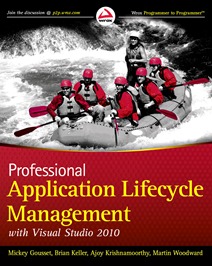
I’ve been writing a book with my friends Mickey Gousett, Brian Keller and Ajoy Krishnamoorthy.  Professional Application Lifecycle Management with Visual Studio 2010 is now complete and on the way to the printers.  With any luck it will be available from all good book stores shortly after the launch of Visual Studio 2010, but you can pre-order your copy now if you want to guarantee a copy of the first edition :-)


But enough pimping of my book – what else have I been up to for the past three months?

Joining Microsoft has been fun.  Perhaps the most surprising aspect for me was how in many ways it doesn’t feel that different (which is a credit to the people who brought us into the company).  I’ll always look back on the Teamprise days with fondness and I miss the people back in the office in Champaign, but all the developers came over to Microsoft from Teamprise at the same time so I’ve plenty of company. Unlike the rest of the Teamprise developers, I still work in the same place (my house in rural Northern Ireland).  I still talk to the same people at Microsoft - we had a very close relationship for years before a decision to make the acquisition was made.  Now at Microsoft, we’ve grown the team with some excellent people (some of the best developers and testers I have ever worked with in my career).  After joining in November and getting the announcement out the way, the rest of the time has just been a blur of late nights coding away as we strive to get the initial Microsoft release ready.  As well as getting TFS 2010 feature support we needed we’ve also had to completely re-brand the product (more on that in another post) and get our code through the various processes internally in Microsoft that have been developed over the years.  While Microsoft are experts at shipping software, they haven’t done that many plug-ins for Eclipse before so we’ve had to break new ground.  So far everyone has been very helpful and being the Eclipse project out of the Visual Studio team sure helps you get your name remembered :-)

The current plan is to ship a limited preview release in a few weeks to let people give us feedback on what we have been working on.  This will also let us have a practise run through the ship process all the way to the end so that we can figure out what we need to fix on that side ready for the RTM.

Between now and the beta release I’m going to try and post about some of the decisions that we have had to make about what we could and couldn’t get into this release along with the interesting challenges re-branding gave us.  Closer to the beta release I’ll show some of the shiny new features along with some of the improvements under the hood that we’d been working on for a while that had always been targeted for the “4.0” version of Teamprise and so never saw the light of day in the 3.X branch that is the basis of what people know and love today.

If there is anything else you want to hear about let me know.  The book is done now so looking forward to getting back to blogging.  I’ve plenty of material from the past 3 months to keep me busy for a while.

Fellow Microsoft TFS Program Manager Jim Lamb has a good post detailing how to create a custom workflow activity in Team Foundation Build 2010 using the first of what I am sure will be many activities to stamp your assemblies with the build number.

One of the common requests we hear is to provide a way of automatically updating the version information in the assemblies produced by a TFS build. Unfortunately, it’s one of those features that never gets quite high enough on our priority list to get implemented. You may have noticed that we haven’t provided a solution to this problem in TFS 2010 Beta 2, but this article is going to show you how to solve this problem yourself and will even give you the sources (see the attached ZIP file) for a working solution that you can start using today.

Jim Lamb – How to create a custom workflow activity for TFS Build 2010

If you start creating your own workflow activities then please consider going over to the Team Build 2010 Contrib project on CodePlex and share what you can.

To MSBuild or not to MSBuild

That is the question that I am frequently asked by folks looking at the impact of Team Foundation Build moving to Windows Workflow 4.0 from MSBuild as the master build orchestration language in the TFS 2010 release.

In general I would always think carefully about re-writing everything in WF 4.0 if you have a perfectly functional MSBuild based build process. Just because things have moved towards workflow based builds in 2010, there is still plenty of logic (such as the actual compile) that is conducted in MSBuild.

Fellow former MVP turned Microsoft employee, William Bartholomew has done an excellent job of writing up the pro's and con's of the available approaches when upgrading build logic to TFS 2010.

I'm regularly asked what's the best way to upgrade an MSBuild-based build process to a Workflow Foundation-based build process and one of the most important parts of this is how to leverage the investment and dependence you have on any custom MBBuild tasks you've written. This post outlines four different ways you can make your custom MSBuild tasks callable from a Workflow Foundation workflow.
  • Use MSBuild Activity to call MSBuild wrapper around MSBuild task
  • Wrap MSBuild task in a custom Workflow Activity
  • Rewrite MSBuild task as a Workflow Activity
  • Extract custom task logic into a POCO class and provide an MSBuild Task and Workflow Activity adapters

William Bartholomew - Upgrade Paths for Custom MSBuild Tasks

William's post is worth reading in full if you are interested in this topic. Also, if you are not subscribed to his new MSDN hosted blog then I highly recommend that you do.

Archives

Creative Commons License
This blog is licensed under a Creative Commons License.